The 8 Best USB-C and Thunderbolt Docks for Laptops in 2026
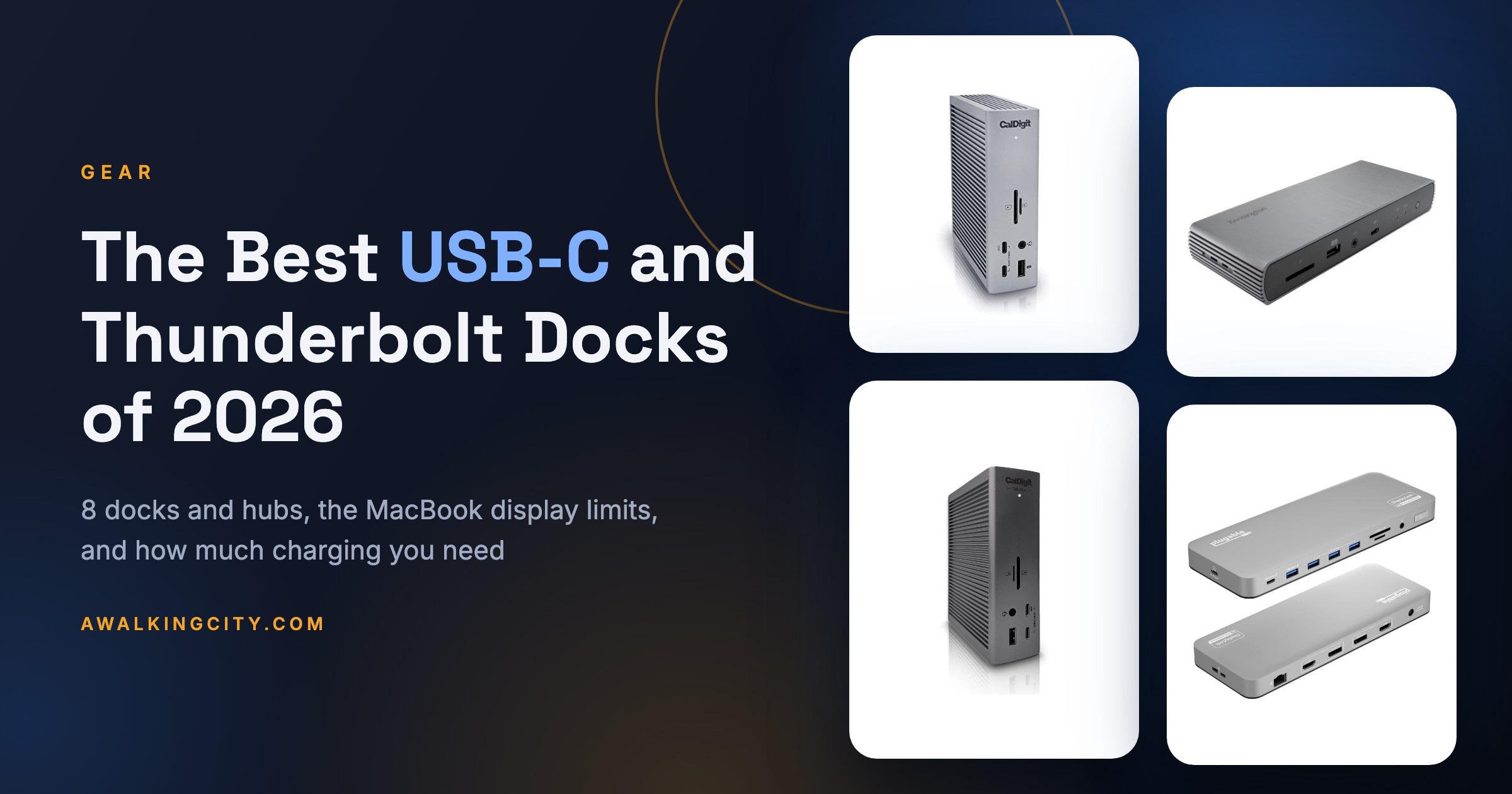
Quick answer: The best dock for most laptops is the CalDigit TS4 ($379.99), a Thunderbolt 4 dock with 18 ports and 98W of charging that behaves the same on a MacBook or a Windows laptop. If you mostly use Windows and want to spend less, the Kensington SD5780T ($299.99) was PCWorld's top Thunderbolt dock in September 2026. If you own an M1 or M2 MacBook Air and want two external monitors, skip Thunderbolt and get the Plugable UD-6950PDH ($199.99): it is a DisplayLink dock, and that is the only way around Apple's one-display limit on those chips.
Our picks at a glance:
- Best overall: CalDigit TS4
- Best for Windows laptops: Kensington SD5780T
- Best Thunderbolt 5 dock: CalDigit TS5 Plus
- Best for M1 and M2 MacBooks (two monitors): Plugable UD-6950PDH
- Best for AMD (USB4) laptops: Plugable UD-4VPD
- Best Thunderbolt 5 dock with an SSD slot: WAVLINK WL-UTD58-M
- Best plain USB-C desk dock: Baseus Spacemate RD1 Pro
- Best budget hub: Anker 555 USB-C Hub (8-in-1)
Docks fail people in two predictable ways. The first is the monitor count: a dock cannot give your laptop more external displays than its chip supports, and base M1 and M2 MacBooks support exactly one. The second is the port on your laptop: a Thunderbolt dock needs a Thunderbolt or USB4 port to do everything on the box, and a cheaper laptop's plain USB-C port turns a $380 dock into an expensive hub. Before you buy, check which chip and which port you have. The MacBook display table and the connection guide below do most of the work.
How they compare
| Dock | Best for | Connection | Laptop charging | Video outputs | Ethernet | Price (Oct 11, 2026) |
|---|---|---|---|---|---|---|
| CalDigit TS4 | Best overall | Thunderbolt 4 | 98W | DisplayPort 1.4 + 2 Thunderbolt 4 | 2.5GbE | $379.99 at CalDigit |
| Kensington SD5780T | Windows laptops | Thunderbolt 4 | 96W | HDMI 2.1 + 2 Thunderbolt 4 | 2.5GbE | $299.99 at Kensington |
| CalDigit TS5 Plus | Thunderbolt 5 | Thunderbolt 5 | 140W | DisplayPort 2.1 + 2 Thunderbolt 5 | 10GbE | $499.99 at CalDigit |
| Plugable UD-6950PDH | M1/M2 MacBooks | USB-C (DisplayLink) | 100W | 2x HDMI or DisplayPort | Gigabit | $199.99 at Plugable |
| Plugable UD-4VPD | AMD / USB4 laptops | USB4 | 100W | 2x HDMI 2.1 (4K 120Hz) | 2.5GbE | $189.95 list (out of stock at Plugable) |
| WAVLINK WL-UTD58-M | Thunderbolt 5 + SSD | Thunderbolt 5 | 140W | 3 Thunderbolt 5 | 2.5GbE | Check live price ($399 MSRP) |
| Baseus Spacemate RD1 Pro | Plain USB-C desk | USB-C 10Gbps | 100W | 2x HDMI | Gigabit | $299.99 at Baseus |
| Anker 555 (8-in-1) | Budget hub | USB-C 10Gbps | 85W (your charger) | 1x HDMI 2.0 | Gigabit | $49.99 at Anker |
1. CalDigit TS4: Best overall
- Connection: Thunderbolt 4 (40Gb/s), works on Thunderbolt 3, USB4 and USB-C hosts
- Ports: 18 total: 3x Thunderbolt 4 (1 to the laptop, 2 downstream), 3x USB-C 10Gb/s, 5x USB-A 10Gb/s, DisplayPort 1.4, SD and microSD (UHS-II), 2.5GbE, three audio jacks
- Laptop charging: up to 98W from a 230W power supply
- Phone charging: front USB-C at 20W
- Cable: 0.8m Thunderbolt 4 in the box
- Warranty: 2 years
- Price: $379.99 at CalDigit's US store (October 11, 2026)
The TS4 is the dock to buy if you want one box that works with whatever laptop you own next. It has more ports than any other Thunderbolt 4 dock here, including five USB-A ports for older keyboards and drives, a fast 2.5GbE jack, and both card readers. CalDigit's 230W power brick is big enough that the 98W laptop port never drops when you plug more devices in, which matters on a 16-inch MacBook Pro or a gaming laptop. Macworld's October 2026 dock guide says it is "difficult to look past" the TS4 unless you want to pay for Thunderbolt 5, and notes that its 230W power supply was the largest Macworld had seen on any dock it tested.
The catch is that the TS4 cannot change what your laptop supports. CalDigit's own chart lists one external display for M1 and M2 Macs, two for M4 and M5 Macs and Thunderbolt 4 Windows laptops, and two for the M3 MacBook Air only with the lid closed. There is one DisplayPort output, so a second monitor goes into a Thunderbolt port with a USB-C cable or adapter, and HDMI adapters top out at 4K 60Hz on M1, M2 and M3 Macs. On a plain USB-C laptop the Ethernet port stops working, because USB-C does not carry PCIe. At $379.99 it is also not cheap for Thunderbolt 4.
M1 or M2 MacBook Air
1 external display
M4 or M5 MacBook Air
2 displays, up to 4K 60Hz each
Thunderbolt 4 Windows laptop
2 displays
What works
- 18 ports, including five USB-A and both SD card sizes
- 98W laptop charging that holds steady under load
- Works on Mac, Windows, iPad and USB-C laptops
What doesn't
- Only one dedicated video port (DisplayPort, no HDMI)
- Ethernet does not work on plain USB-C laptops
- Two-year warranty, one year less than Kensington
Video review: CalDigit TS4 Review: The BEST Thunderbolt Dock For MacBook Pro! by AppleInsider
2. Kensington SD5780T: Best for Windows laptops
- Connection: Thunderbolt 4 (40Gbps), works on Thunderbolt 3 and USB4
- Ports: 11 total: 3x Thunderbolt 4, HDMI 2.1, 4x USB-A 10Gbps, 2.5GbE, SD 4.0 (UHS-II), audio combo jack
- Laptop charging: 96W
- Displays: one 8K 60Hz, one 4K 120Hz, or two 4K/6K 60Hz
- Software: free DockWorks (MAC address pass-through, Wi-Fi auto-switch)
- Warranty: 3 years
- Price: $299.99 at Kensington (October 11, 2026)
The SD5780T is PCWorld's best overall Thunderbolt dock in its September 2026 update, and the reasons are boring in a good way: solid performance, no thermal issues, and stable behavior across laptops, which PCWorld notes is not true of every dock. It has an HDMI 2.1 port, which saves Windows users an adapter, plus three Thunderbolt 4 ports and a 2.5GbE jack. Kensington's DockWorks software and the three-year warranty are aimed at office IT, but they are just as useful at home. At the $299.99 Kensington charges now, it costs $80 less than the TS4.
It has fewer ports than the CalDigit (11 against 18), with no USB-C data ports beyond the Thunderbolt ones and no microSD slot. A second monitor needs a USB-C to HDMI cable, which PCWorld prices at about $15. There is no dedicated phone charging port, though a Thunderbolt port will charge a phone. On a Mac it hits the same wall as everything else: Kensington's own listing says base M1 and M2 MacBooks support a single external display through it.
Kensington store
$299.99
Second monitor
needs a USB-C to HDMI cable (about $15)
Warranty
3 years
What works
- PCWorld's top Thunderbolt dock, praised for stability
- HDMI 2.1 on the dock itself
- Three-year warranty and free management software
What doesn't
- Only one dedicated display port
- No USB-C data ports beyond Thunderbolt, no microSD
- PCWorld found the rear USB-A ports deliver less power than expected
3. CalDigit TS5 Plus: Best Thunderbolt 5 dock

- Connection: Thunderbolt 5 (80Gb/s both ways, up to 120Gb/s in Bandwidth Boost)
- Ports: 20 total: 3x Thunderbolt 5 (1 to the laptop, 2 downstream), 5x USB-C 10Gb/s, 5x USB-A 10Gb/s, DisplayPort 2.1, SD and microSD (UHS-II), 10GbE, three audio jacks
- Laptop charging: up to 140W from a 330W power supply
- Other charging: 36W on each downstream Thunderbolt 5 port and the front USB-C
- Windows requirement: Thunderbolt 4 or newer, Intel 12th Gen or newer; USB4 laptops need PCIe tunneling
- Warranty: 2 years
- Price: $499.99 at CalDigit's US store (October 11, 2026)
The TS5 Plus is what you buy when the laptop is the expensive part of your desk. Tom's Hardware names it the best premium Thunderbolt 5 dock for Windows laptops and says it "puts most other Thunderbolt docks to shame" on port count, while Macworld calls it the ultimate compact Thunderbolt 5 dock for Macs. The 10GbE port is the practical reason to pay for it: if you edit off a fast home NAS, 10GbE is four times the speed of the 2.5GbE ports on Thunderbolt 4 docks. It is also the dock that unlocks the newest Macs: CalDigit lists three 4K 144Hz displays on an M5 Pro MacBook Pro and four on an M5 Max.
For everyone else, it is a lot of money for headroom. M4 and base M5 Macs still top out at two external displays through it, CalDigit says M4 Macs cannot run three over a single Thunderbolt 5 connection, and Thunderbolt 4 laptops cannot run three at all. PCWorld's September 2026 guide argues that Thunderbolt 5 docks are overkill for most Windows PCs, since neither Intel nor AMD builds Thunderbolt 5 into their 2026 laptop platforms. Tom's Hardware's only complaint besides price is the lack of an internal SSD slot.
M4 or base M5 Mac
2 displays
M5 Pro MacBook Pro
3 displays (4K 144Hz)
M5 Max MacBook Pro
4 displays
What works
- 10GbE and 20 ports in a small vertical case
- 140W charging with enough power left for every port at once
- Native DisplayPort 2.1 and triple displays on M5 Pro and M5 Max
What doesn't
- $499.99 is a lot if your laptop is Thunderbolt 4
- No internal M.2 SSD slot
- Older Windows laptops are not supported (Intel 12th Gen or newer)
Video review: CalDigit TS5 Plus review - A most powerful Thunderbolt 5 Dock by 9to5Mac
4. Plugable UD-6950PDH: Best for M1 and M2 MacBooks
- Connection: USB-C with DisplayLink (works on Thunderbolt, USB4 and USB-C)
- Displays: two 4K 60Hz extended monitors over HDMI, DisplayPort or one of each
- Ports: 14-in-1: HDMI and DisplayPort video outputs (two screens at once), 4 USB-A at 5Gbps, a front charge-only USB-C, SD, microSD, headset jack, Gigabit Ethernet
- Laptop charging: up to 100W, power adapter included
- Software: DisplayLink Manager required on Mac
- Price: $199.99 at Plugable (October 11, 2026)
This is the dock for the problem most MacBook owners actually have. Apple's tech specs give the M1 and M2 MacBook Air one external display, and no Thunderbolt dock changes that. The UD-6950PDH sidesteps the limit with DisplayLink: a driver compresses the extra screens and sends them over USB, so an M1 or M2 Air can run two extended 4K 60Hz monitors plus its own screen. It also works on the new MacBook Neo, which Apple limits to one 4K 60Hz display, and on lid-open M3 Airs. PCWorld picked it as its runner-up DisplayLink dock and calls it terrific value for office workers, with 100W of charging and plenty of USB-A ports.
DisplayLink has real costs. You install DisplayLink Manager and grant it macOS Screen Recording permission. Plugable warns that copy-protected video from services like Netflix and Disney+ may show a black screen on every display while the dock is connected, and PCWorld says gaming and high-refresh monitors are beyond it. There are no USB-C data ports. One more caution: Plugable's listing says M1 through M5 MacBooks support only one monitor natively, but Apple's own support pages say M4 and M5 MacBooks drive two, so newer Mac owners do not need DisplayLink for a two-monitor desk.
M1 or M2 MacBook Air
2 extended 4K 60Hz monitors + built-in
Setup
DisplayLink Manager + Screen Recording permission
Streaming video
HDCP content blocked on macOS while connected
What works
- Two extended monitors on M1, M2 and MacBook Neo
- HDMI or DisplayPort for each screen, so your cables fit
- 100W charging with the power adapter in the box
What doesn't
- Netflix and other protected video can go black on macOS
- Not for gaming or high refresh rates
- No USB-C data ports, USB-A tops out at 5Gbps
Setup video: How to Connect Dual Monitors to MacBook Neo | Plugable UD-6950PDH Setup Guide by Plugable (the manufacturer)
5. Plugable UD-4VPD: Best for AMD (USB4) laptops

- Connection: USB4 (40Gbps), also works with Thunderbolt and USB-C
- Displays: two HDMI 2.1 ports at up to 4K 120Hz each, or one 8K 60Hz screen
- Ports: 11-in-1: 2x USB 10Gbps, 1x USB 5Gbps, USB-C (10Gbps, 20W), 2.5GbE, SD and microSD
- Laptop charging: up to 100W
- Platforms: Windows 10 and newer; Plugable says it is not recommended for Macs
- Price: $189.95 list at Plugable, out of stock there on October 11, 2026
Most AMD Ryzen laptops have USB4 rather than Thunderbolt, and PCWorld includes a USB4 category partly because many buyers do not know the two are close cousins. Its pick is this Plugable dock, which it praises for value, stable performance and excellent charging. The headline feature is two HDMI 2.1 ports that each run 4K at 120Hz at the same time, so it suits a Windows laptop driving a pair of high-refresh monitors. The 20W USB-C port fast-charges a phone.
PCWorld flags significant thermal issues and below-average storage speeds across the dock. Plugable itself says the dock is not recommended for Macs. And 4K 120Hz needs a full-featured USB4 or Thunderbolt 4 port. Plugable's own store showed it out of stock when we checked, so the retailer link below may be your best route.
Windows USB4 or Thunderbolt 4
2x 4K 120Hz over HDMI
One screen
8K 60Hz
Mac
Not recommended by Plugable
What works
- Dual HDMI 2.1 at 4K 120Hz
- 100W laptop charging plus a 20W phone port
- 2.5GbE and both card readers
What doesn't
- PCWorld measured significant heat
- Not for Macs
- Out of stock at Plugable's own store
6. WAVLINK WL-UTD58-M: Best Thunderbolt 5 dock with an SSD slot
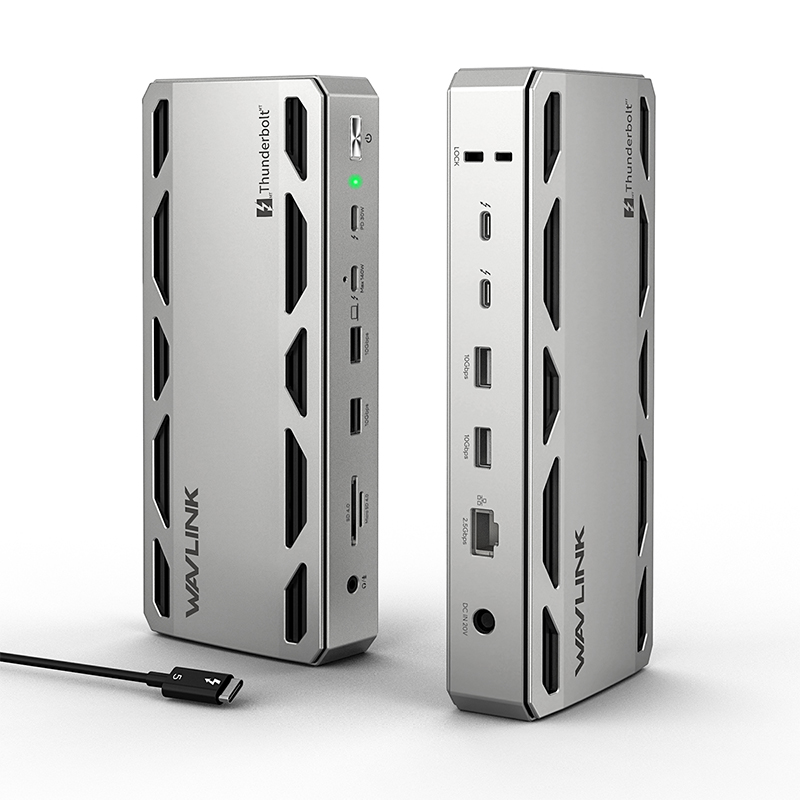
- Connection: Thunderbolt 5 (up to 120Gbps), works with Thunderbolt 4 and USB4
- Ports: 13-in-1: 3x downstream Thunderbolt 5, 4x USB-A 10Gbps, 2.5GbE, SD 4.0, 3.5mm audio, internal M.2 slot
- SSD slot: M.2 2280 NVMe only, up to 6,000MB/s (Wavlink)
- Laptop charging: up to 140W
- Displays: up to three 4K 144Hz on Windows; up to two 6K 60Hz on a Mac
- Price: check live price ($399 MSRP per Tom's Hardware)
Tom's Hardware picks this as the best value Thunderbolt 5 dock, and the internal M.2 slot is the reason it stands out. Drop in an NVMe drive and you get fast scratch storage that lives inside the dock instead of dangling off a port, which suits video editors with a Thunderbolt 5 laptop. You also get three downstream Thunderbolt 5 ports, 140W charging and a temperature-controlled fan. On Windows it can drive three 4K monitors at 144Hz.
Tom's Hardware's complaints are fair: at this price a 5GbE port would have been nice, and the Thunderbolt port that goes to your laptop is on the front, so the cable runs across your desk. There are no USB-C data ports or HDMI, so monitors connect through the Thunderbolt ports with USB-C cables or adapters. Macs get two displays at most, it needs macOS 14.6 or later, and Wavlink says most Thunderbolt 3 PCs will not recognize it.
Thunderbolt 5 Windows laptop
3x 4K 144Hz
Mac (M-series)
2 displays, up to 6K 60Hz
SSD slot
M.2 2280 NVMe, drive not included
What works
- Built-in NVMe slot for fast storage
- Three downstream Thunderbolt 5 ports and 140W charging
- Lower MSRP than the CalDigit TS5 Plus
What doesn't
- Host cable plugs into the front
- Only 2.5GbE on a Thunderbolt 5 dock
- No HDMI or USB-C data ports
7. Baseus Spacemate RD1 Pro: Best plain USB-C desk dock

- Connection: USB-C at 10Gbps (not Thunderbolt certified, but works with Thunderbolt and USB4 laptops)
- Ports: 15 total: 2x HDMI, 2x USB-C 10Gbps, 2x USB-C charging at up to 100W, 4x USB-A (per Baseus), SD, microSD, Gigabit Ethernet
- Charging: 160W total from a 180W GaN adapter in the box; up to 100W to the laptop; 25W Qi2.2 wireless pad on top
- Displays: one 4K 120Hz, or two 4K 60Hz on Windows
- Warranty: 2 years
- Price: $299.99 at Baseus (October 11, 2026)
If your laptop has plain USB-C, a Thunderbolt dock wastes money, and this is the most complete USB-C dock in the group. Tom's Hardware names it the best USB-C dock and points to the extras: a 25W Qi2.2 wireless charging pad that tilts up so you can see your phone, and a small screen showing what each front USB-C port is drawing. Two 100W USB-C charging ports mean it can top up a tablet and a second laptop alongside your main one. Windows laptops get two independent 4K 60Hz monitors over the twin HDMI ports.
Mac owners should read Baseus's own FAQ first: on macOS it supports a single extended display or two mirrored displays, not two extended ones, which is the Mac limitation explained below. Tom's Hardware notes two of the USB-A ports are stuck at 480 Mbps. Pricing is also messy: Tom's lists a $199.99 MSRP, but Baseus's store charges $299.99 for the Windows version, and promo codes have dropped it lower, so compare before buying.
Windows laptop
2x 4K 60Hz extended
Mac
1 extended, or 2 mirrored
Phone
25W Qi2.2 pad
What works
- Wireless phone charger and port power display built in
- 160W of total charging across four devices
- Two HDMI ports for Windows dual-monitor setups
What doesn't
- Macs cannot extend to two monitors through it
- Two USB-A ports are USB 2.0 speed
- Store price is well above Tom's listed MSRP
8. Anker 555 USB-C Hub (8-in-1): Best budget hub
- Connection: USB-C, bus powered (no power brick)
- Ports: HDMI 2.0 (4K 60Hz), USB-C data (10Gbps), 2x USB-A (10Gbps), Gigabit Ethernet, SD and microSD (UHS-I), USB-C power input
- Laptop charging: up to 85W pass-through with your own 100W charger (charger not included)
- Displays: one
- Price: $49.99 at Anker (October 11, 2026)
A hub is not a dock: it has no power supply of its own, it sits on a short cable, and it is built to go in a bag. For a laptop that only needs one monitor, Ethernet, a card reader and a couple of USB-A ports, that is all you need, and it costs a fraction of anything above. Engadget's January 2026 hub guide called the choice between this and UGREEN's Revodok Pro 109 a tough call for its top spot, and says the Anker is a worthwhile pick if you want to save a few bucks. Anker's store lists it at $49.99 with 312 reviews.
The limits are the usual hub limits. You plug your laptop charger into it, and 15W of that goes to running the hub, so a 100W charger becomes 85W at the laptop. There is one HDMI port, so one external monitor. Engadget preferred the UGREEN for its sturdier build, extra USB-A port and slightly longer cord. If you need more than one monitor, more than about 85W of charging or a dock that stays on the desk, look higher on this list.
Anker store
$49.99
Laptop charging
85W with a 100W charger
Displays
One 4K 60Hz over HDMI
What works
- 10Gbps USB-C and USB-A data ports
- 4K 60Hz HDMI, Ethernet and both card readers
- Small enough to travel with
What doesn't
- Takes 15W of your charger for itself
- One display only
- Charger not included
Also worth a look
- CalDigit TS5 ($399.99 at CalDigit): PCWorld's pick for Mac users. It trades the TS5 Plus's DisplayPort and 10GbE for an extra Thunderbolt 5 port and 2.5GbE, with the same 140W charging, for $100 less.
- UGREEN Revodok CM615 ($169.99 when PCWorld reviewed it): PCWorld's top DisplayLink dock, with two 4K 60Hz outputs and excellent stability, but you supply the power adapter and install a driver.
- UGREEN Revodok Pro 109 (check live price): Engadget's best USB-C hub overall, with 90W of pass-through charging, HDMI 2.0, three USB-A ports and a 10-inch cable.
- Sonnet Echo 13 Thunderbolt 5 SSD Dock ($369 per Macworld): PCWorld's best premium Thunderbolt dock, with an SSD built in; bigger SSD capacities push the price up fast.
The MacBook display limit, explained
The number of external monitors a MacBook can drive is set by its chip, not by the dock. Apple's support pages, last updated March 10, 2026, lay it out by model. A dock or daisy chain can put more than one display on a single Thunderbolt port, Apple notes, but it "does not increase the maximum number of displays that you can connect."
| MacBook | External displays (Apple) | Notes |
|---|---|---|
| MacBook Air with M1 or M2 | 1 | Up to 6K 60Hz |
| MacBook Air or 14-inch MacBook Pro with M3 | 1 with the lid open, 2 with the lid closed | Needs macOS Sonoma 14.3 (Air) or 14.6 (Pro), power, external keyboard and mouse; second screen up to 5K 60Hz |
| MacBook Air or MacBook Pro with M4 or M5 | 2 | Two at up to 6K 60Hz or 4K 144Hz each; closing the lid does not add a third |
| MacBook Pro with M2 Pro, M3 Pro or M4 Pro | 2 | |
| MacBook Pro with M5 Pro | 3 | Three at up to 6K 60Hz or 4K 144Hz |
| MacBook Pro with M2 Max, M3 Max, M4 Max or M5 Max | 4 | |
| MacBook Neo (A18 Pro) | 1 | Up to 4K 60Hz over its USB 3 port |
Two things trip up Mac owners in practice. First, many cheap "dual HDMI" USB-C docks split one video signal into two using a method called MST, and Plugable's support pages state that macOS does not support MST for separate extended displays. On a Mac those docks give you two mirrored screens or one extended screen, which is exactly what Baseus's FAQ says about the RD1 Pro. Second, the only way past the chip limit on M1, M2, lid-open M3 and Neo machines is DisplayLink, which renders the extra screens in software. That is why we recommend the Plugable UD-6950PDH for those laptops and a Thunderbolt dock for everything newer.
Thunderbolt 5 vs Thunderbolt 4 vs USB4 vs plain USB-C
All four use the same USB-C plug, which is the source of most bad dock purchases. Here is what each one guarantees.
- Thunderbolt 4: 40Gbps, at least 32Gbps for PCIe devices, and support for two 4K 60Hz monitors, per Tom's Guide. Thunderbolt 4 cables keep full speed at 2 meters. This is the right default for most Thunderbolt laptops, including M-series MacBook Airs and Pros.
- USB4: up to 40Gbps, but some devices only do 20Gbps and the minimum power is 7.5W. PCWorld notes that USB4 ports typically appear on AMD Ryzen laptops and calls USB4 and Thunderbolt 4 essentially interchangeable for docks. Look for a "40" on the spec sheet.
- Thunderbolt 5: 80Gb/s in both directions, up to 120Gb/s when a monitor needs more, and 64Gb/s for PCIe, double Thunderbolt 4, per CalDigit's spec comparison. It matters for M5 Pro and M5 Max MacBook Pros, fast external SSDs and 10GbE. PCWorld calls it overkill for most Windows PCs in 2026.
- Plain USB-C (10Gbps): what cheaper Windows laptops and the MacBook Neo have. A Thunderbolt dock usually still works, but slower and with features missing (CalDigit says the TS4's Ethernet port will not work at all). Buy a USB-C dock or hub instead.
Networking follows the same ladder. Tom's Hardware notes that Thunderbolt 4 docks usually stop at 2.5GbE, Thunderbolt 5 docks reach 10GbE, and most USB-C docks are Gigabit. Faster dock Ethernet only helps if your router, switch or mesh Wi-Fi system has a matching port, so check before paying for 10GbE.
How much charging power you need
Match the dock's laptop charging to the charger that came with your laptop. Thin laptops with small chargers are fine on any dock here. Big laptops are where it matters: the Thunderbolt 4 docks here deliver 96W to 98W (CalDigit says the TS4's 98W charges a 16-inch MacBook Pro with a Max chip "in the majority of scenarios"), and the TS5 Plus and WL-UTD58-M go to 140W. Hubs work differently, because they pass through your own charger and keep some for themselves: the Anker 555 turns a 100W charger into 85W at the laptop. If a dock delivers less than your laptop wants, it still works, but the battery may drain under heavy load.
How we picked
This is desk research. We did not run, benchmark or measure any of these docks ourselves. We started from current roundups by Tom's Hardware, PCWorld (updated September 23, 2026), Macworld (updated October 8, 2026) and Engadget, kept the docks that more than one outlet or a long-running review recommended, and then checked every spec against the manufacturer's own page. The MacBook display limits come from Apple's support pages and tech specs, not from dock makers, whose claims sometimes disagree with Apple. Prices were read from manufacturer stores on October 11, 2026. Where a retailer blocked us or prices swing daily, we say "check live price."
Frequently asked questions
How many external monitors can a MacBook Air run through a dock?
It depends on the chip, not the dock. Apple lists one external display for the M1 and M2 MacBook Air, two for the M3 Air only with the lid closed, and two for the M4 and M5 Air with the lid open. To get two extended monitors on an M1 or M2 Air, you need a DisplayLink dock such as the Plugable UD-6950PDH.
Will a Thunderbolt dock work on a laptop with plain USB-C?
Usually, but with features missing. Tom's Hardware warns that a Thunderbolt dock won't work through a standard USB-C port, while CalDigit says its TS4 does run on USB-C hosts with the Ethernet port disabled. Either way you pay for bandwidth you cannot use, so a USB-C dock or hub is the better buy for a USB-C laptop.
Is Thunderbolt 5 worth it in 2026?
Only if your laptop has it and you need the extra bandwidth. Thunderbolt 5 doubles PCIe bandwidth and lets M5 Pro and M5 Max MacBook Pros run three or four monitors from one cable. PCWorld argues Thunderbolt 5 docks are overkill for most Windows PCs, since Intel and AMD do not build it into their 2026 laptop platforms.
Why do my two monitors mirror instead of extend on my Mac?
Your dock probably uses MST to split one video signal into two, and Plugable's support pages state that macOS does not support MST for separate extended displays. Base M1 and M2 Macs also support only one external display. Apple suggests connecting the display directly to the Mac if a dock only mirrors it, and DisplayLink docks are the workaround on M1 and M2.
How much charging wattage should a dock have?
At least as much as your laptop's own charger supplies. The Thunderbolt 4 docks here deliver 96W to 98W, which CalDigit says charges even a 16-inch MacBook Pro with a Max chip in most scenarios, and Thunderbolt 5 docks like the CalDigit TS5 Plus go to 140W. Hubs pass through your charger and keep some for themselves: the Anker 555 turns a 100W charger into 85W at the laptop.
Does the MacBook Neo work with these docks?
Yes, but it gets less from them. Apple's specs give the MacBook Neo one USB 3 port at up to 10Gb/s and one external display at up to 4K 60Hz. Thunderbolt docks run at that slower speed, so a USB-C dock or the DisplayLink-based Plugable UD-6950PDH, which adds a second monitor, makes more sense.
The bottom line
For most people with a Thunderbolt laptop, the CalDigit TS4 is the dock to buy, and the Kensington SD5780T does the job for less on Windows. Owners of M1 or M2 MacBook Airs should skip Thunderbolt and get the Plugable UD-6950PDH for two monitors, and anyone with a plain USB-C laptop and one screen can stop at the $49.99 Anker 555.
Some links in this article are affiliate links that may earn us a commission at no extra cost to you. Affiliate relationships never affect our rankings, and no manufacturer paid to appear. Links to manufacturer sites are not affiliate links. Prices were recorded on manufacturer stores on October 11, 2026, and will change.